Interior Staging in Revit
One prompt furnishes a room in your Revit model. Then Higgsfield, an AI image and video tool, turns that same view into photos and a video.
Watch the reel on InstagramShown on the Revit 2025 sample · rac_basic_sample_project · Claude, with the Revit MCP server and the Higgsfield connector
Revit × Claude is out: 44 Revit skills, three free to try. See the skills →
1. Connect Revit
The prompt runs through the Revit MCP server, a free add-in that lets Claude read the model you have open and make changes in it. Set it up once and it loads with Revit after that.
▸How to set up the Revit MCPopen
The full setup, with a video, is at archaiflow.com/setup.
step 1Install pyRevit
Install the latest pyRevit from pyrevitlabs.io.
step 2Add the extension, in Revit
It is in pyRevit’s own extension list, so there is nothing to download by hand.
- 1.Revit → pyRevit tab →
Extensions. Findrevit-mcp-pythonand install it. - 2.Same tab →
Settings→ Routes: turn the Routes Server on. - 3.Restart Revit and open a project.
step 3Install the Revit MCP
Paste this prompt to install the Revit MCP.
Connect the Revit MCP server to Claude Desktop on Windows.
The pyRevit extension is already installed at
%APPDATA%\pyRevit\Extensions\revit-mcp-python.extension

1. Install uv if it isn't already on PATH.
2. Add a "Revit Connector" entry to the mcpServers block of my
   claude_desktop_config.json that runs the main.py in that
   folder with uv. The repo README's "Connecting to Claude
   Desktop" section has the exact JSON shape:
   https://github.com/revit-mcp/revit-mcp-python
3. Tell me when it's done, and remind me to quit Claude Desktop
   completely and reopen it.
Quitting Claude Desktop completely and reopening it puts Revit Connector in the connectors list under the message box.
One more setting lets Claude reach Poly Haven, where the furniture comes from. In Settings → Capabilities, under code execution, allow network access to api.polyhaven.com, cdn.polyhaven.com and dl.polyhaven.org. Without it, Claude cannot see the furniture photos or sizes.
2. Connect Higgsfield
Higgsfield turns the Revit view into a photo or a video, with every piece where Claude placed it. It is added as a custom connector, so there is nothing to install.
Get started with Higgsfield- 1.In Claude Desktop, open Settings → Connectors → Add custom connector.
- 2.Name it
Higgsfieldand pastehttps://mcp.higgsfield.ai/mcp. - 3.Click Connect and sign in to your Higgsfield account.
Then open the + menu under the message box and switch on both Revit and Higgsfield. Images and videos use your Higgsfield credits, and Claude shows the cost before each one.
3. One prompt
Open the model in Revit and choose Opus 5.5 at max effort. Max can take a long time, so extra high or high works well too. Then paste this into a new chat.
Furnish a room in the Revit model I have open, then render it
with Higgsfield. Ask every question as buttons, and wait for
my answer before the next step.

1. Show me the 3D camera views, each with a small picture,
   and ask which one to furnish.
2. Read that room: its size, floor, doors, windows and what
   the camera sees.
3. Use only pieces you can place: furniture already in my
   model, or free models from Poly Haven. Never store
   products. Take each model's size, author and photo from
   api.polyhaven.com. Build 3 to 5 plans on one page, in the
   format of this file:
   https://archaiflow.com/research/revit-interior-staging/plan-template.txt
   Ask which plan.
4. Place that plan in Revit one piece at a time, exactly the
   pieces shown, downloading the models through Revit on my
   computer. Fix anything floating, overlapping or blocking
   a door, then show me the view and ask if it looks right.
5. Ask what look I want. Recommend the best Higgsfield model
   and its cost. Save the view as a large image on my Desktop
   and open the Higgsfield upload so I can drop it in. Render
   it: same camera, every piece where it is, nothing added.
6. Ask if I want a video. If yes, suggest a few quiet
   motions, recommend the model and its cost, and keep the
   camera still.

Never save the model, and ask Revit one thing at a time.
Every choice comes as buttons: the view, the plan, the look and the video. Most answers take one click.
One step is by hand. Higgsfield cannot open files on your computer, so Claude saves the view to your Desktop and you drop it into the upload box it opens.
The last line keeps your model safe. Claude places the furniture but never saves, so closing Revit without saving puts the model back the way it was.
4. What comes back
First, a page of 3 to 5 plans to choose from. Each plan has a drawing of the room to scale, and every piece has a card with its photo, its real size and where it goes.
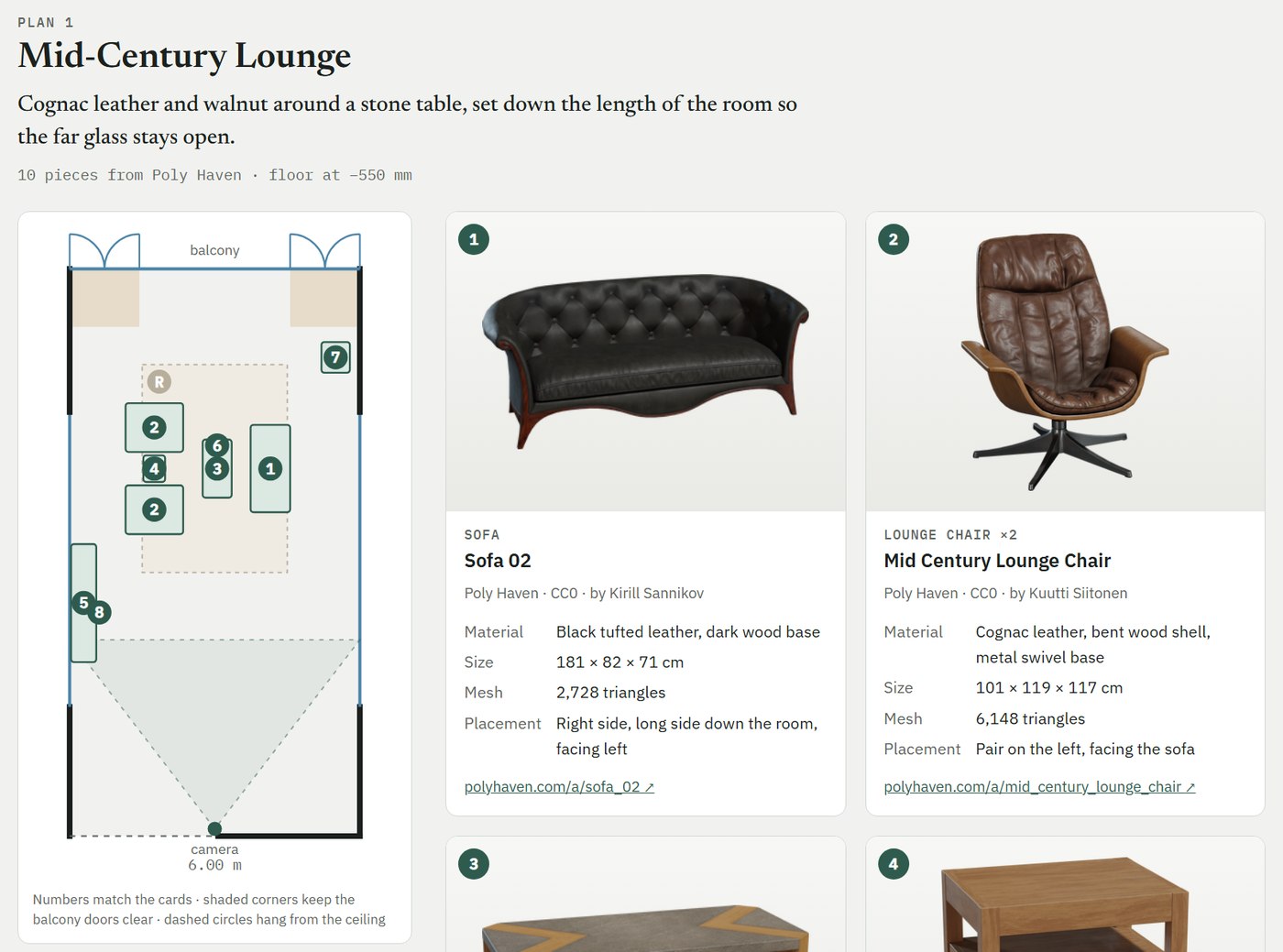
The page follows one format file, so it comes out the same way each time.
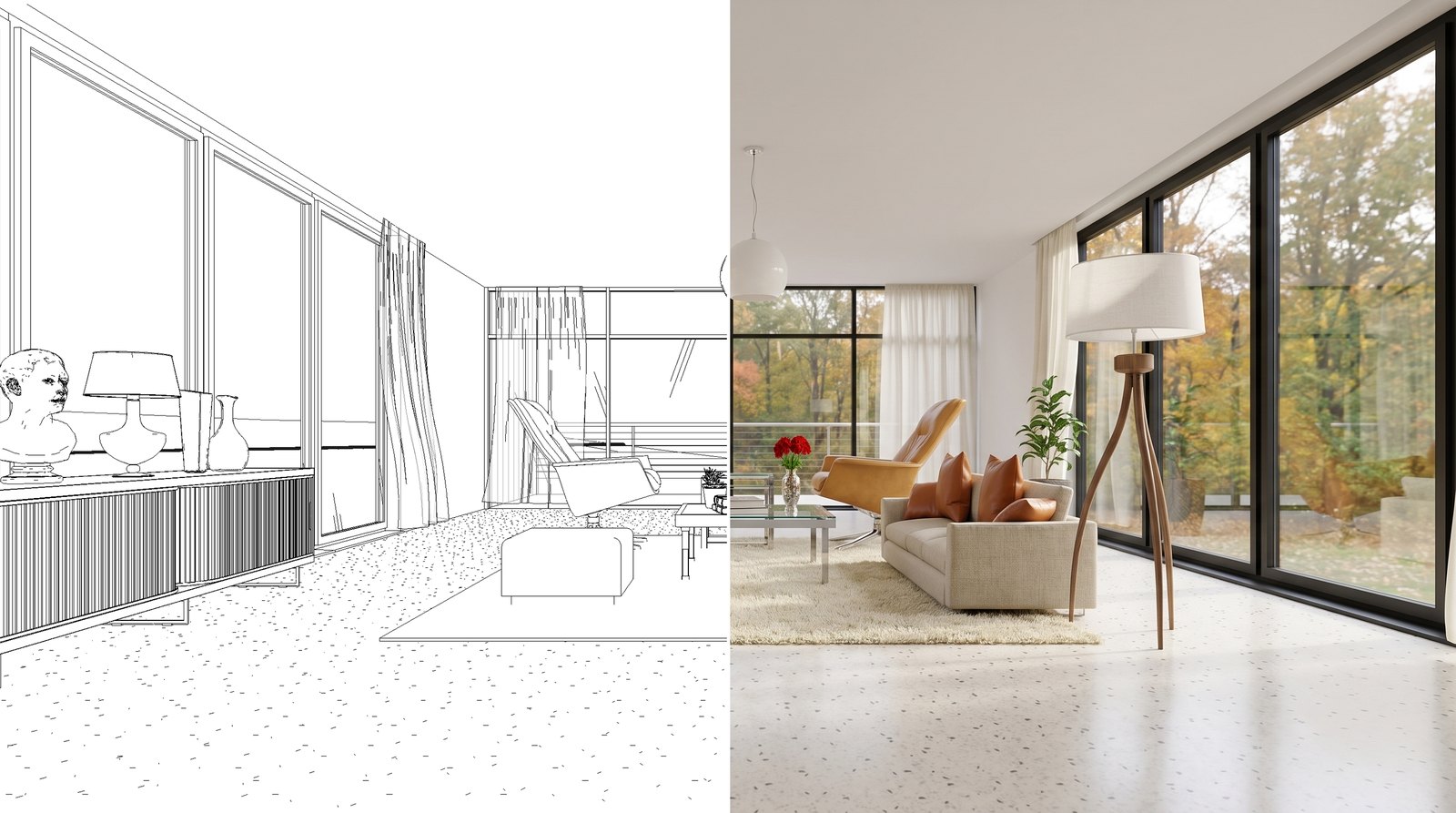
Then the furniture goes into the model, and Higgsfield turns the same view into a photo, like the pair at the top of this page.
A video from the same view, with the camera still:
Where the furniture came from
In this example most pieces are free 3D models from the web, loaded into the model as shapes Revit can show and render. Poly Haven models are free to use with no credit needed (CC0). The Sketchfab models were found through Objaverse, a public list of free models, and ask for the author’s name wherever the picture is shown (CC BY 4.0), which is why they are listed here.
| Piece | Model | Source · licence |
|---|---|---|
| Lounge chairs | mid_century_lounge_chair | Poly Haven · CC0 |
| Sideboard | modern_wooden_cabinet | Poly Haven · CC0 |
| Side table | side_table_01 | Poly Haven · CC0 |
| Pendant | modern_ceiling_lamp_01 | Poly Haven · CC0 |
| Bust | marble_bust_01 | Poly Haven · CC0 |
| Vases | ceramic_vase_01, 03 | Poly Haven · CC0 |
| Plants | potted_plant_01, 04 | Poly Haven · CC0 |
| Sofa | Feathers 5 Seat, by mohitoz | Sketchfab · CC BY 4.0 |
| Cushions | nitori-147083, by aaarwild | Sketchfab · CC BY 4.0 |
| Glass coffee table | Table, by Irfansaeedahmad | Sketchfab · CC BY 4.0 |
| Floor lamp | Торшер 4638 Mantra, by fedomo | Sketchfab · CC BY 4.0 |
| Table lamp | Oxford Transparent Black 2, by ideavetro | Sketchfab · CC BY 4.0 |
| Books | Bound Books, by hrjtz | Sketchfab · CC BY 4.0 |
| Sheer curtains | Curtains, by Heliona | Sketchfab · CC BY 4.0 |
The ottoman and the flower vase were already in the Revit sample project, and the rug is a flat shape drawn in Revit.
The prompt keeps to Poly Haven, so every piece is free to use with no credit needed. It finds the pieces first and builds the plans from those alone, so the photo on each card is the piece that goes into your model.
5. Where this goes
To change the design, ask. Move the sofa closer to the window, or try a walnut table: Claude changes the model, and the next render follows it.
To change only the look, ask for new materials. The furniture and the view stay where they are.
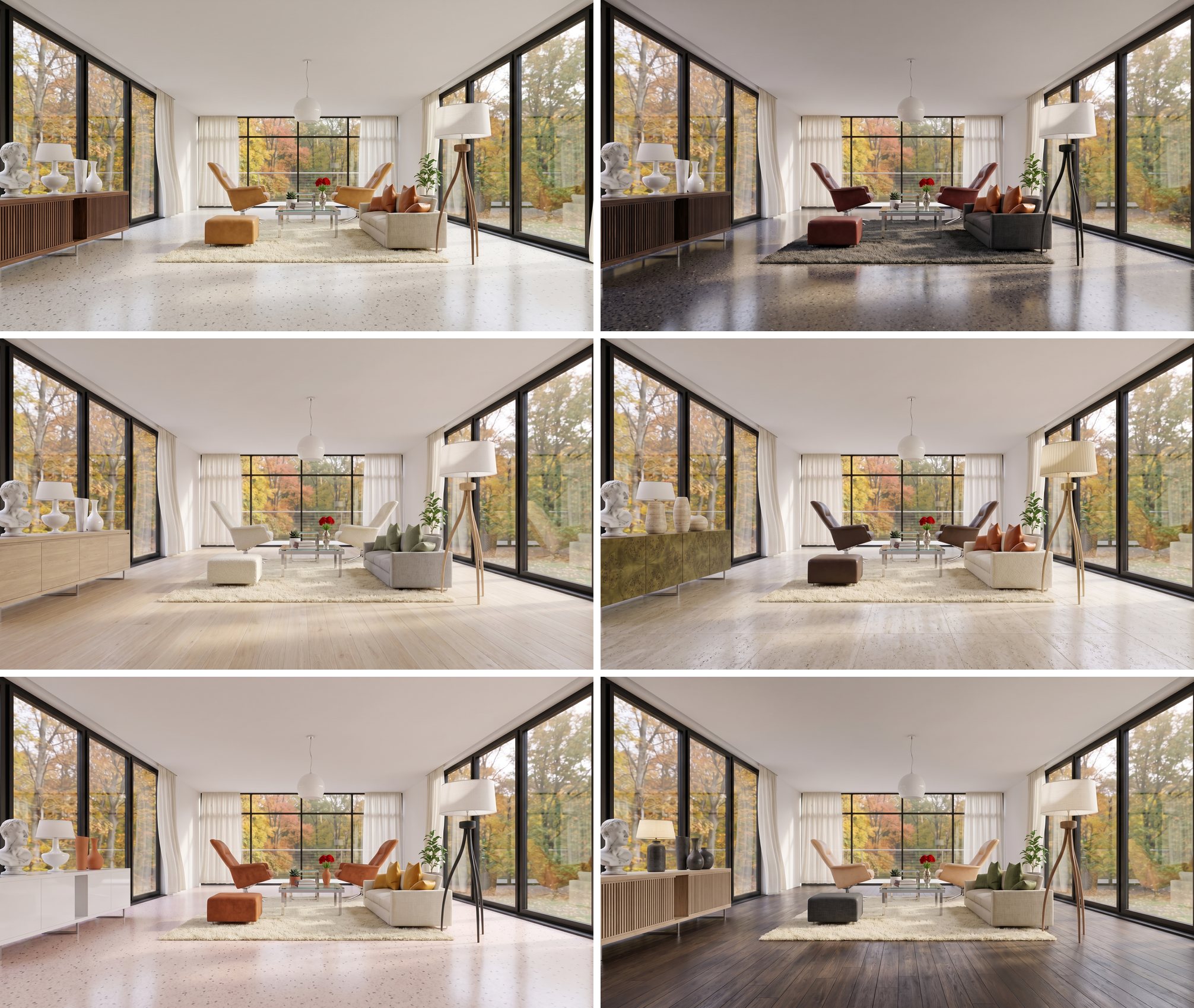
The same prompt works on any room that has a 3D camera view.
I hope this one helped, even a little. If it did, the skills and the handbook will help a lot more: the Revit jobs that come back every day, done with Claude, in the model that is already open. Only what I have run myself and found useful on real projects goes in.
David