Revit to InDesign
One prompt reads the open model and builds a presentation in InDesign. Real text, styles and views from the model, so every page stays editable.
Shown on the Revit 2025 sample · Snowdon Towers · Claude, with the Revit MCP server and the Adobe connector
Want to learn more about Revit and Claude? Join the waitlist →
1. Connect Revit
The prompt runs through the Revit MCP server, a free add-in that lets Claude read the model you have open and make changes in it. Set it up once and it loads with Revit after that.
▸How to set up the Revit MCPopen
step 1Install pyRevit
Install the latest pyRevit from pyrevitlabs.io.
step 2Add the extension, in Revit
It is in pyRevit’s own extension list, so there is nothing to download by hand.
- 1.Revit → pyRevit tab →
Extensions. Findrevit-mcp-pythonand install it. - 2.Same tab →
Settings→ Routes: turn the Routes Server on. - 3.Restart Revit and open a project.
step 3Install the Revit MCP
Paste this prompt to install the Revit MCP.
Connect the Revit MCP server to Claude Desktop on Windows.
The pyRevit extension is already installed at
%APPDATA%\pyRevit\Extensions\revit-mcp-python.extension

1. Install uv if it isn't already on PATH.
2. Add a "Revit Connector" entry to the mcpServers block of my
   claude_desktop_config.json that runs the main.py in that
   folder with uv. The repo README's "Connecting to Claude
   Desktop" section has the exact JSON shape:
   https://github.com/revit-mcp/revit-mcp-python
3. Tell me when it's done, and remind me to quit Claude Desktop
   completely and reopen it.
Quitting Claude Desktop completely and reopening it puts Revit Connector in the connectors list under the message box.
2. Connect Adobe
Adobe is a published connector, so there is nothing to install. Open the + menu under the message box, go to Connectors, find Adobe and sign in. Revit and Adobe both need to be switched on in that menu.
3. One prompt
Open the model in Revit, then paste this into a new chat.
Make an InDesign presentation from the project open in Revit.
Ask every question as buttons, and wait for my answer before
the next step.

1. Read the model and sum up the project in 5 lines.
2. Ask who it's for, what it's for, and how many pages, in one go.
3. Ask the format: 16:9 or A4. Put your pick first.
4. Ask how to set the look: follow a file I give you (PPTX or
   PDF), or find references online. Recommend one.
   If online, show 3 references with pictures and what you'd
   take from each, then ask which.
5. Show the page plan, then ask: build it, or change it.
6. Build it in a new InDesign document, using views from the
   model. Show me each page when done.

Only read Revit: never change or save the model, and ask it
one thing at a time.
Claude asks four times before it builds anything: who and what the deck is for, the page size, the look, and the page plan. Each question comes as buttons, so most answers are one click, and for the page size and the look Claude puts its own pick first.
The last line keeps the model safe. Revit is only read, and one request at a time matters: Revit answers one at a time, so two sent together can come back mixed up.
4. What comes back
An ordinary InDesign file. Every heading and paragraph is a text frame with a paragraph style, every colour is a swatch, and every view is a linked image. The figures are counted from the rooms placed in the model, not typed in.
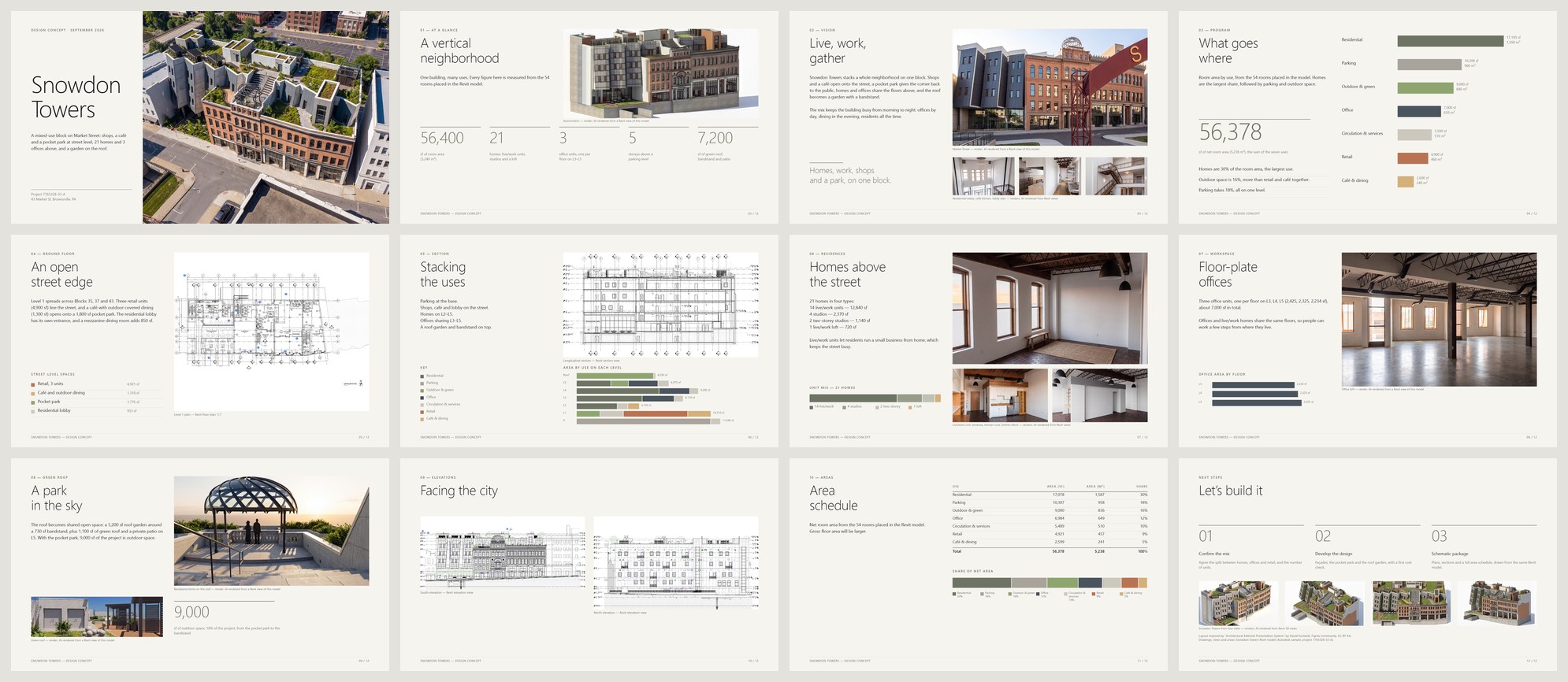
This is one example of the format. The deck follows the reference you pick in step 4, so the closer that reference is to what you want, the fewer rounds it takes. Your firm’s own deck or template, given as a PPTX or PDF, works best: Claude follows its grid, type and colours instead of guessing.
5. Where this goes
The model stays the source. InDesign is where the deck gets its last touches, by hand, the way it always has.
The prompt asks instead of assuming, so the same lines run on any project. When the model changes, run it again.
6. Optional: the InDesign MCP
The Adobe connector works from outside InDesign. It can’t move anything inside the InDesign on your computer.
The InDesign MCP works inside InDesign. Claude puts every word, box and picture on the page right there, and you can watch it happen.
If you want that, set it up once and run the same prompt.
▸How to set up the InDesign MCPopen
step 1Install Node.js
Install the LTS version from nodejs.org. Nothing is added to InDesign itself.
step 2Install the InDesign MCP
Open InDesign, then paste this prompt. It works on Windows and Mac.
Connect the InDesign MCP server to Claude Desktop, using
https://github.com/studio-prisma/indesign-mcp-server

1. Put it in a folder in my home directory and install it.
2. Make a folder called "InDesign Work" in Documents, and let
   the server save files there only.
3. Add an "InDesign" entry to the mcpServers block of my
   claude_desktop_config.json. The repo README has the shape.
4. Check that it can reach InDesign without opening or
   changing any document.
5. Tell me when it's done, and remind me to quit Claude Desktop
   completely and reopen it.
After reopening, InDesign sits in the connectors list next to Revit Connector. Both need to be switched on.