Revit to D5 Lite
Claude picks the views with you, furnishes and lights the room in Revit, and saves the D5 Lite images from the same camera each time. Materials, layouts, and morning to night, all from one prompt.
Shown on the rac basic sample project in Revit 2027, with D5 Lite for Revit (beta)
Revit × Claude is out: 44 Revit skills, three free to try. See the skills →
1. Connect Revit
The prompt runs through the Revit MCP server, a free add-in that lets Claude read the model you have open and make changes in it. Set it up once and it loads with Revit after that.
▸How to set up the Revit MCPopen
The full setup, with a video, is at archaiflow.com/setup. This page uses Claude Code, so the last step is different.
step 1Install pyRevit
Install the latest pyRevit from pyrevitlabs.io.
step 2Add the extension, in Revit
It is in pyRevit’s own extension list, so there is nothing to download by hand.
- 1.Revit → pyRevit tab →
Extensions. Findrevit-mcp-pythonand install it. - 2.Same tab →
Settings→ Routes: turn the Routes Server on. - 3.Restart Revit and open a project.
step 3Add the Revit MCP to Claude Code
Paste this prompt into Claude Code.
Connect the Revit MCP server to Claude Code on Windows.
The pyRevit extension is already installed at
%APPDATA%\pyRevit\Extensions\revit-mcp-python.extension

1. Install uv if it isn't already on PATH.
2. Add it with claude mcp add, as "revit", running the main.py
   in that folder with uv. Use the same command the repo README
   gives in its "Connecting to Claude Desktop" section:
   https://github.com/revit-mcp/revit-mcp-python
3. Tell me when it's done, and remind me to restart Claude Code.
2. Connect D5 Lite
D5 Lite is a real-time renderer that runs alongside Revit and draws your actual model, on your own graphics card. It needs an NVIDIA RTX card.
It has no MCP server. Claude drives it through a command-line tool that ships with D5 Lite, which is why this page uses Claude Code (the Code tab in the Claude desktop app, or the terminal) rather than a chat.
▸How to connect Claude to D5 Liteopen
step 1Install D5 Lite for Revit
Download D5 Launcher from d5render.com/download and sign in. In the Launcher, open Workflow, then the Lite tab, and install D5 Lite for Revit (Beta). It works with Revit 2019 to 2027.
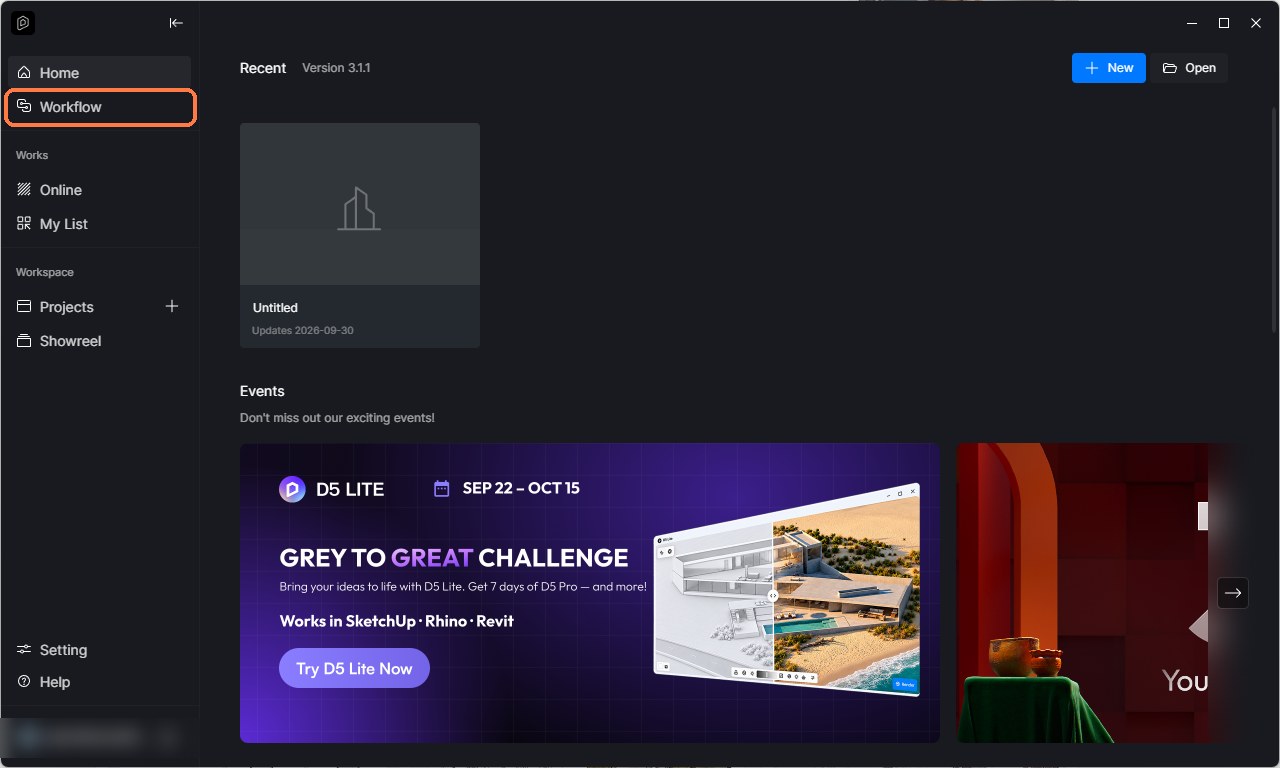
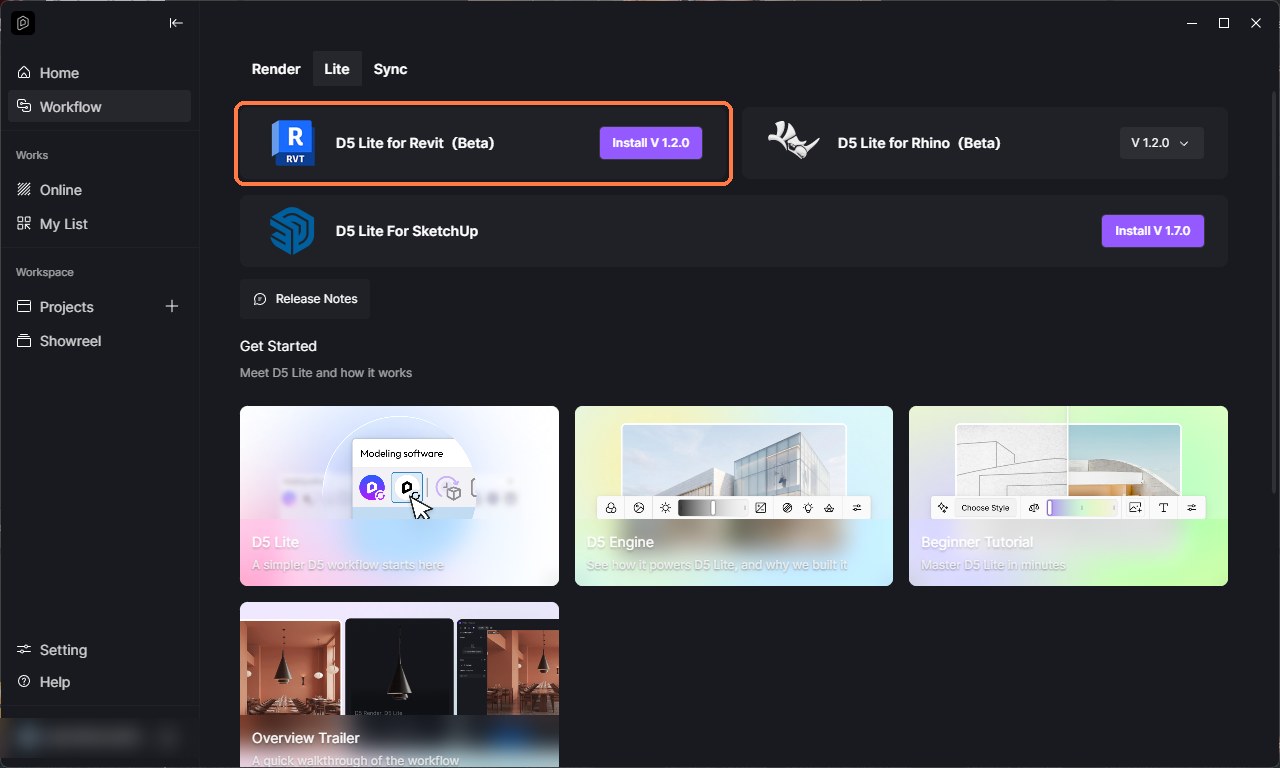
Then, in Revit, open your model and press Connect to D5 Lite on the D5 Lite tab.
step 2Nothing to paste yet
The prompt in section 3 starts with D5’s own connection check, so Claude finds the tool and checks the link to Revit before it does anything else. Run Claude Code as the same Windows user that installed D5 Lite, and keep Revit open.
D5’s guide to the connection, and what to do if the check fails: docs.d5render.com/lite/ai-agent-connection.
3. One prompt
Keep Revit and D5 Lite open, then paste this into Claude Code.
Use the Revit model I have open and D5 Lite.

First, connect to the D5 Lite installed on this machine and run
these checks:
- Locate and check the D5LiteWorkflowCli.exe that matches my
  current modeling software, and confirm that the connector, the
  local workflow environment, and the host connection are all
  working.
- Report the current D5 Lite, the connector path, the version,
  and the check results. If a check fails, explain the cause and
  suggest how to fix it, and stop there.

Then:
1. List the 3D and camera views in my model and ask me which ones
   to use. Keep each camera exactly as it is.
2. Look at each view I pick and tell me what is in it: the room,
   the furniture, the materials you can see and the lights.
3. Give me one plan as cards, one card per question, with what
   you would pick and why:
   - Furniture: leave it, or add some? If a room looks empty,
     suggest a few layouts using families already in the model.
   - Materials: a few sets for floors, walls and furniture to
     compare.
   - Lighting: is there enough for an evening shot? If not, say
     where you would add lights.
   - Output: a sun timelapse from morning to night, the same view
     in each material set, or every view as a set for a client.
   Let me change any card before you start.
4. Do what we agreed, from the same camera for every image.
   Ask before you add anything to the model.
5. Save the images in order to a folder in Documents, together
   with the plan and the list of views, so you can make the same
   images again when the design changes.
6. Show me the images and list anything you could not do.

While you work in D5 Lite:
- D5 only picks up Revit changes after Sync Once.
- To change a material D5 already shows, give it a new name in
  Revit first, then sync.
- Light settings reset after a sync, so set lights last.
- Turn auto exposure off when comparing materials or times of
  day, so the brightness stays fair.

If something you need is missing, tell me instead of guessing.
Never save the Revit model.
Claude reports the D5 check first. Then it stops twice, at steps 1 and 3, so you can pick the views and change the plan. The rest runs on its own.
The four lines under “While you work in D5 Lite” are what took longest to find out. With them, Claude gets materials and lights right the first time.
4. What comes back
The camera never moves, so every image lines up with the one before it. An empty room fills one piece at a time.
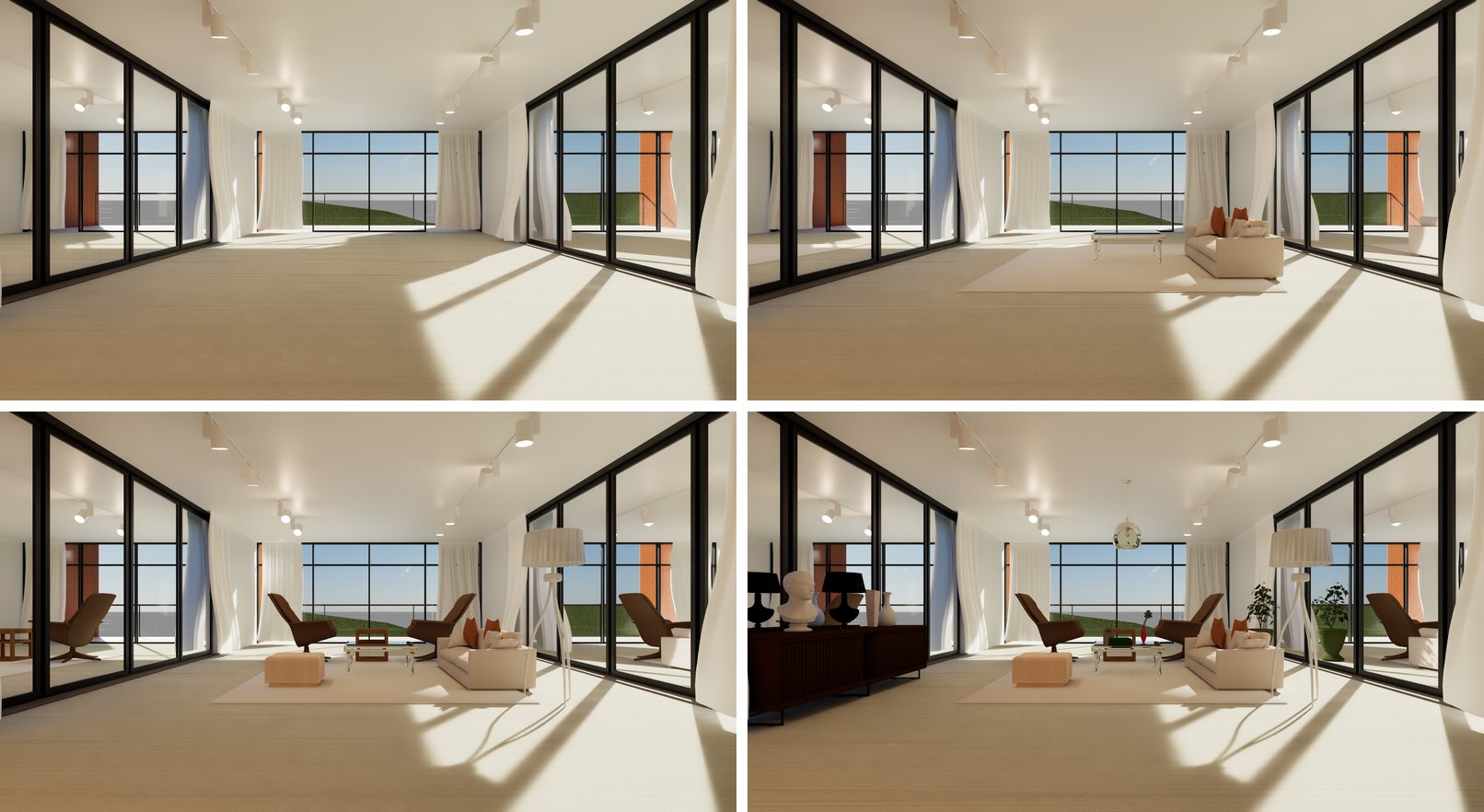
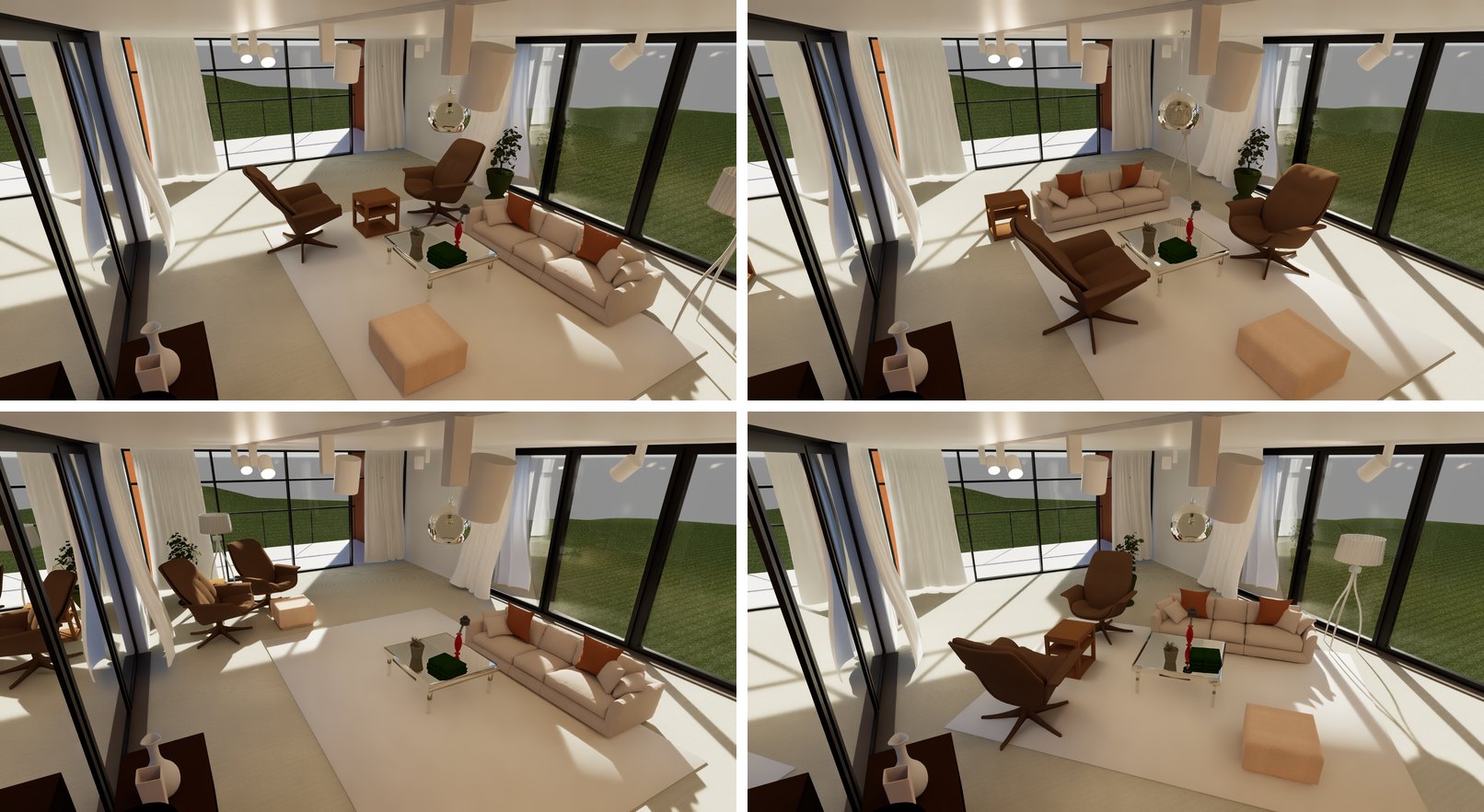
The same furniture, arranged four ways.
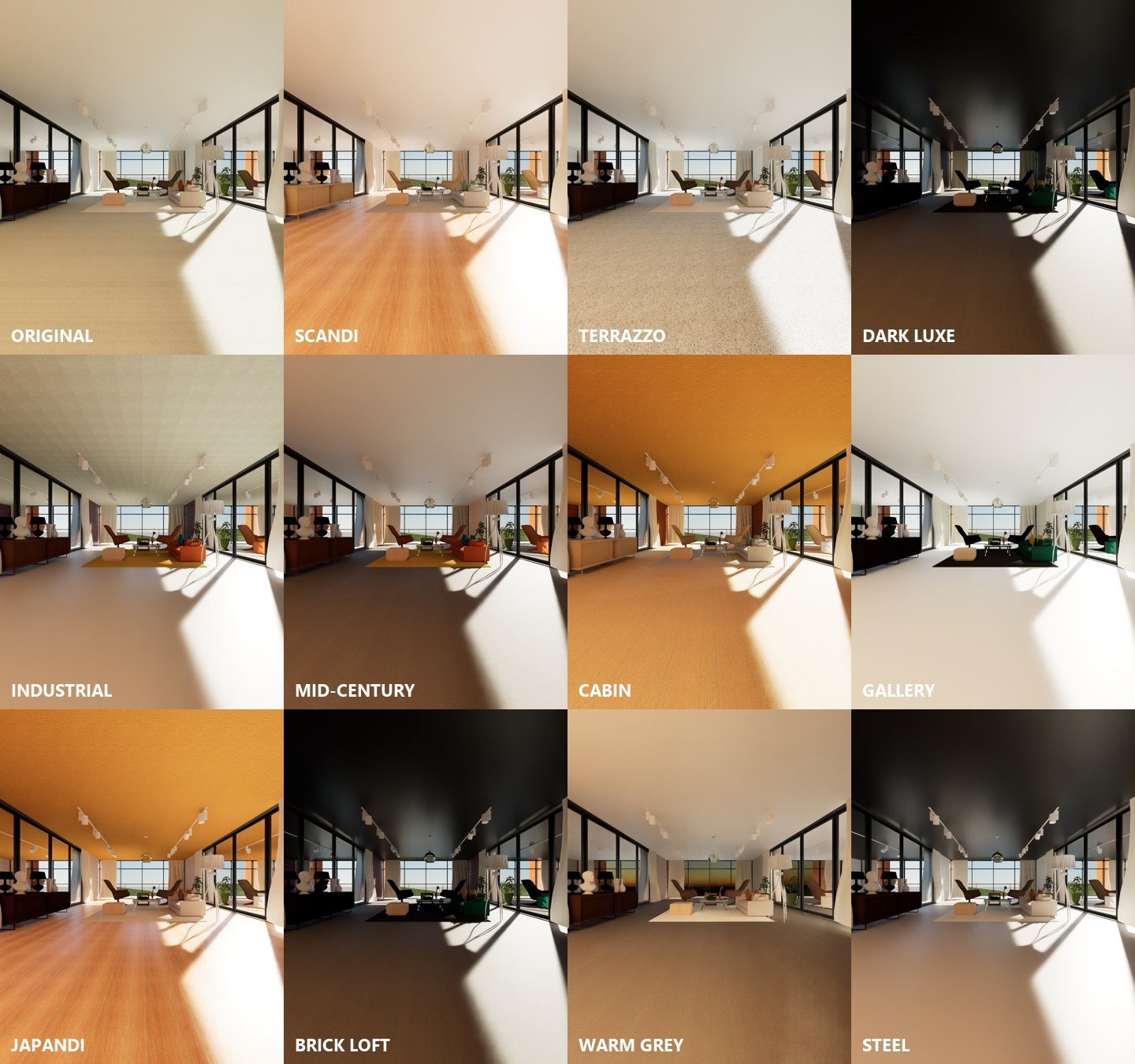
The same view in twelve material sets, under the same sun and the same exposure, so a dark floor really reads dark.
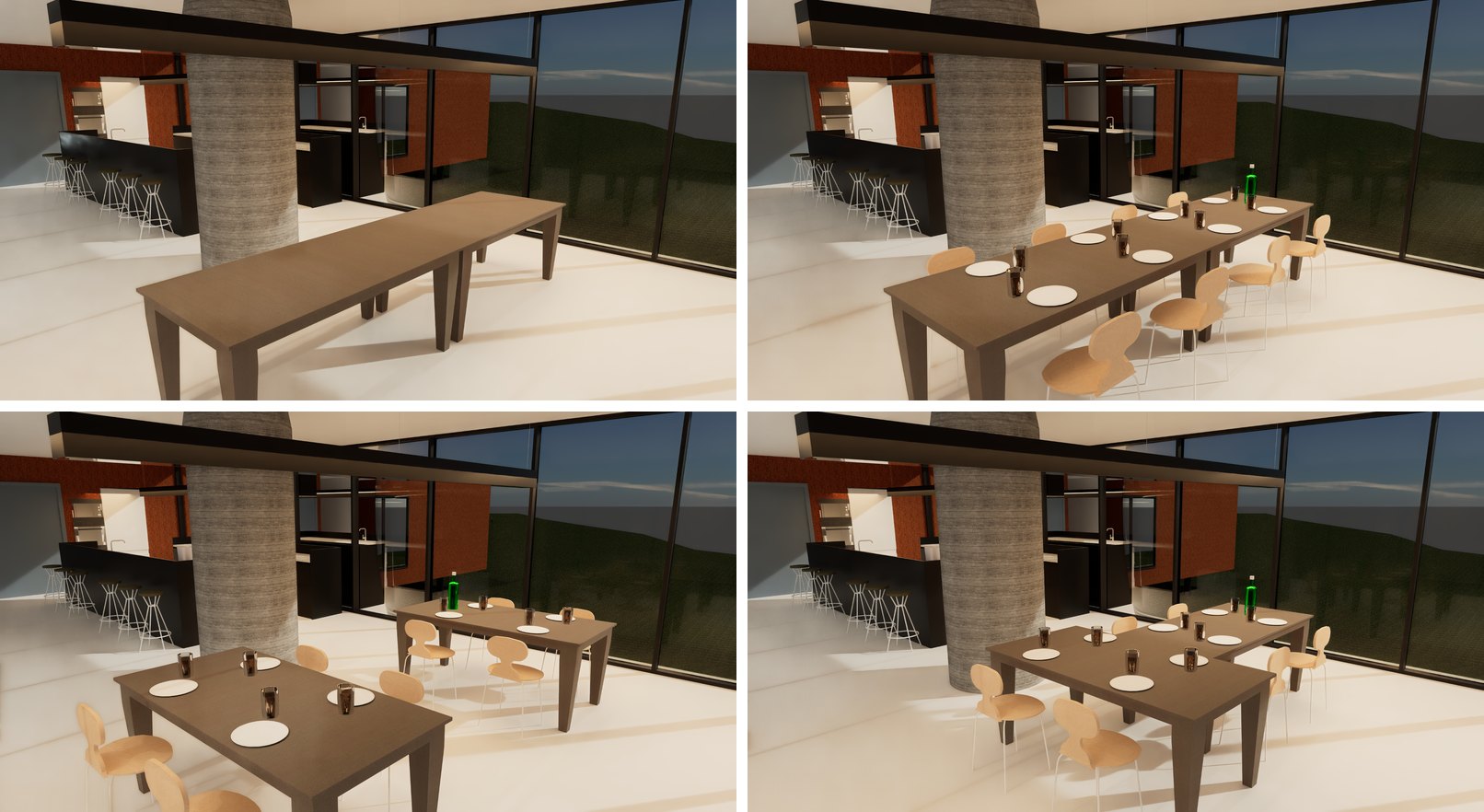
A second view works the same way. Here the dining tables come in, are set for eight, then are moved apart and into a T.
5. Why D5 Lite
D5 Lite draws your actual Revit geometry, so the building in the image is the building in the model. When the design changes, the same views can be made again from the same cameras.
The images come from D5 Lite’s live view, on your own graphics card, with no image-generation cost per picture. D5 also has a Render button for slower, higher-quality images. It is not used here: on the RTX 5070 used for this page it closed D5 Lite every time, so the prompt saves the live view instead.
I hope this one helped, even a little. If it did, the skills and the handbook will help a lot more: the Revit jobs that come back every day, done with Claude, in the model that is already open. Only what I have run myself and found useful on real projects goes in.
David