Revit to Canva
Claude pulls every wall type in the Revit model apart, layer by layer, then lays them out in Canva with each layer’s material and thickness. All from the Claude desktop app.
Shown on the Pacific Continental Residence in Revit 2027
Revit × Claude is out: 44 Revit skills, three free to try. See the skills →
1. Connect Revit
The prompt runs through the Revit MCP server, a free add-in that lets Claude read the model you have open and make changes in it. Set it up once and it loads with Revit after that.
▸How to set up the Revit MCPopen
The full setup, with a video, is at archaiflow.com/setup.
step 1Install pyRevit
Install the latest pyRevit from pyrevitlabs.io.
step 2Add the extension, in Revit
It is in pyRevit’s own extension list, so there is nothing to download by hand.
- 1.Revit → pyRevit tab →
Extensions. Findrevit-mcp-pythonand install it. - 2.Same tab →
Settings→ Routes: turn the Routes Server on. - 3.Restart Revit and open a project.
step 3Install the Revit MCP
Paste this prompt to install the Revit MCP.
Connect the Revit MCP server to Claude Desktop on Windows.
The pyRevit extension is already installed at
%APPDATA%\pyRevit\Extensions\revit-mcp-python.extension

1. Install uv if it isn't already on PATH.
2. Add a "Revit Connector" entry to the mcpServers block of my
   claude_desktop_config.json that runs the main.py in that
   folder with uv. The repo README's "Connecting to Claude
   Desktop" section has the exact JSON shape:
   https://github.com/revit-mcp/revit-mcp-python
3. Tell me when it's done, and remind me to quit Claude Desktop
   completely and reopen it.
Quitting Claude Desktop completely and reopening it puts Revit Connector in the connectors list under the message box.
2. Connect Canva
Canva is one of Claude’s own connectors, so there is nothing to install. The Canva tools the prompt uses are on every Canva plan, the free one included.
- 1.In the Claude desktop app, open Settings → Connectors.
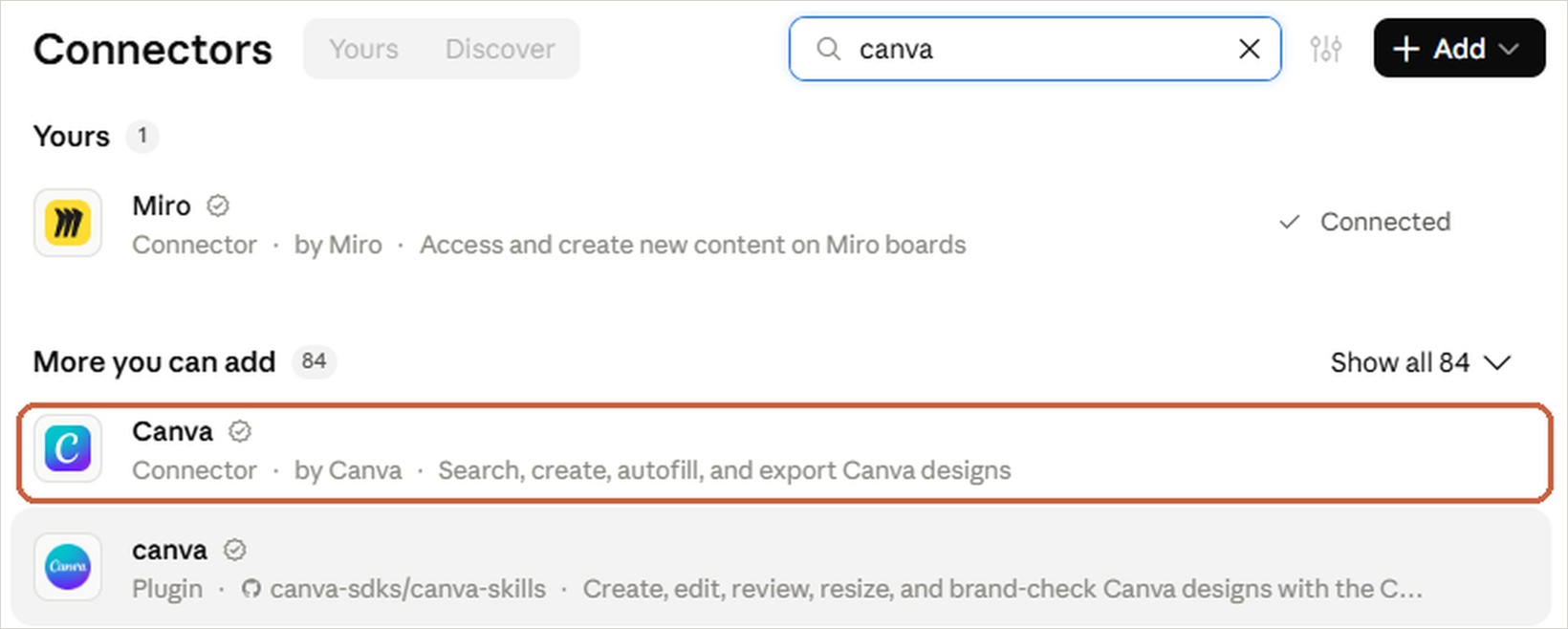
- 2.Search
canvaand add Canva, the one markedConnector · by Canva. The plugin below it is a different thing. - 3.Sign in to Canva and allow access.
- 4.In a new chat, switch on Canva and Revit Connector in the connectors list under the message box.
3. One prompt
Open the model in Revit, then paste this into a new chat.
Use the Revit model I have open and Canva.

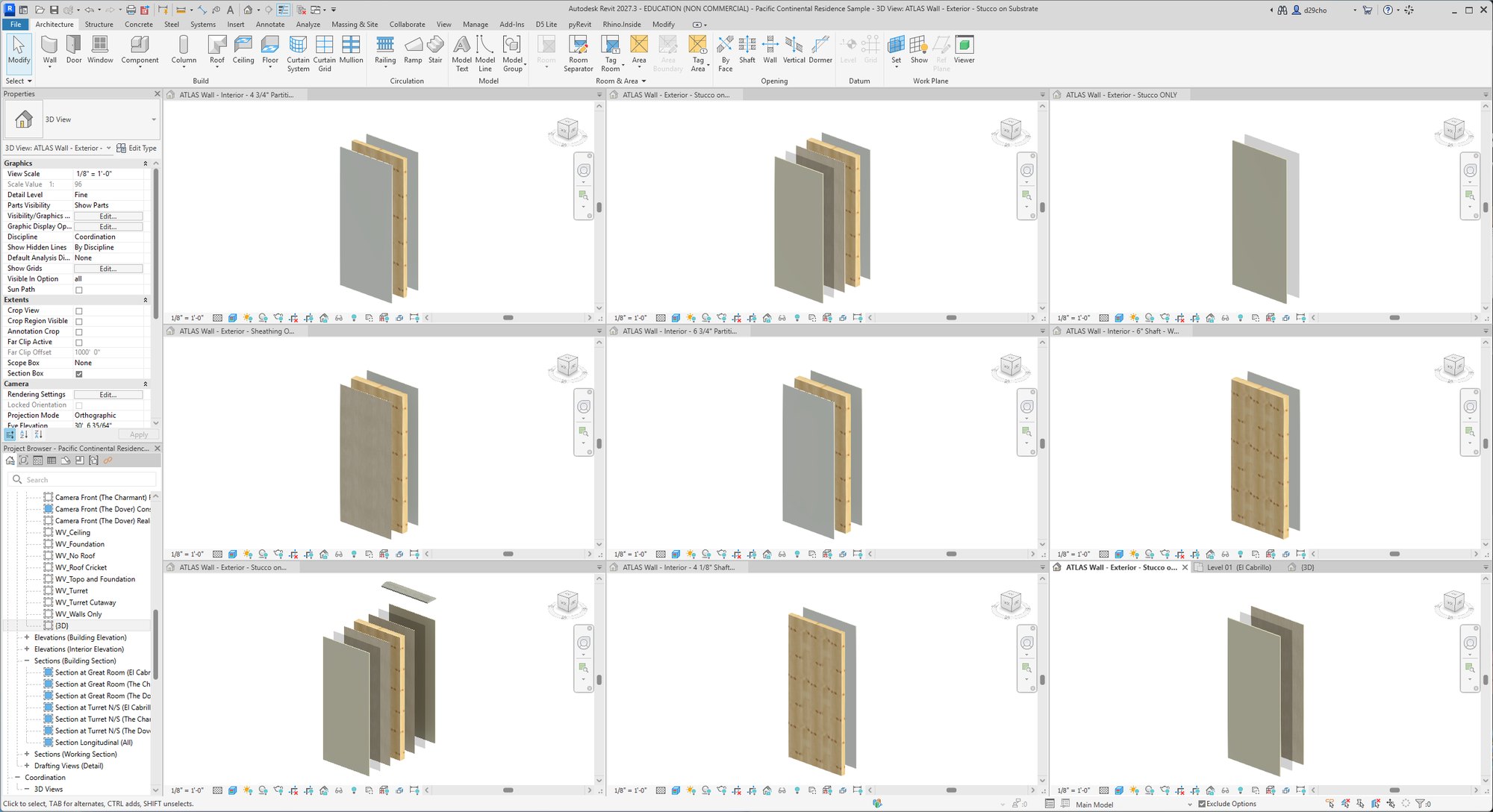
1. For each layered wall type the model uses, stand a 1.2 m
   sample wall on empty ground beside the building. Split each
   sample into parts, one per layer, and pull the layers apart
   in a 3D view of its own, the outside layer furthest, in that
   view only. Tile the views so I can watch.
2. Export each view as a PNG to a folder in Documents, with the
   type's layers listed: material, function and thickness.
3. Suggest a few ways to lay them out in Canva and ask me which
   one.
4. Canva can't read files on this computer, so for each PNG get
   an upload link from Canva and have Revit send the file to
   it. Build the one I pick with those pictures and the layer
   lists, never with generated images.
5. Go through the pages with me and tell me which wall type to
   look at first: the exterior wall the model uses most.

Never save the Revit model. When I say I'm done, delete the
sample walls, their parts and their views.
Claude stops once, at step 3, so you can pick. The rest runs on its own.
4. What comes back
In Revit, one sample of every wall type, pulled apart in its own view.
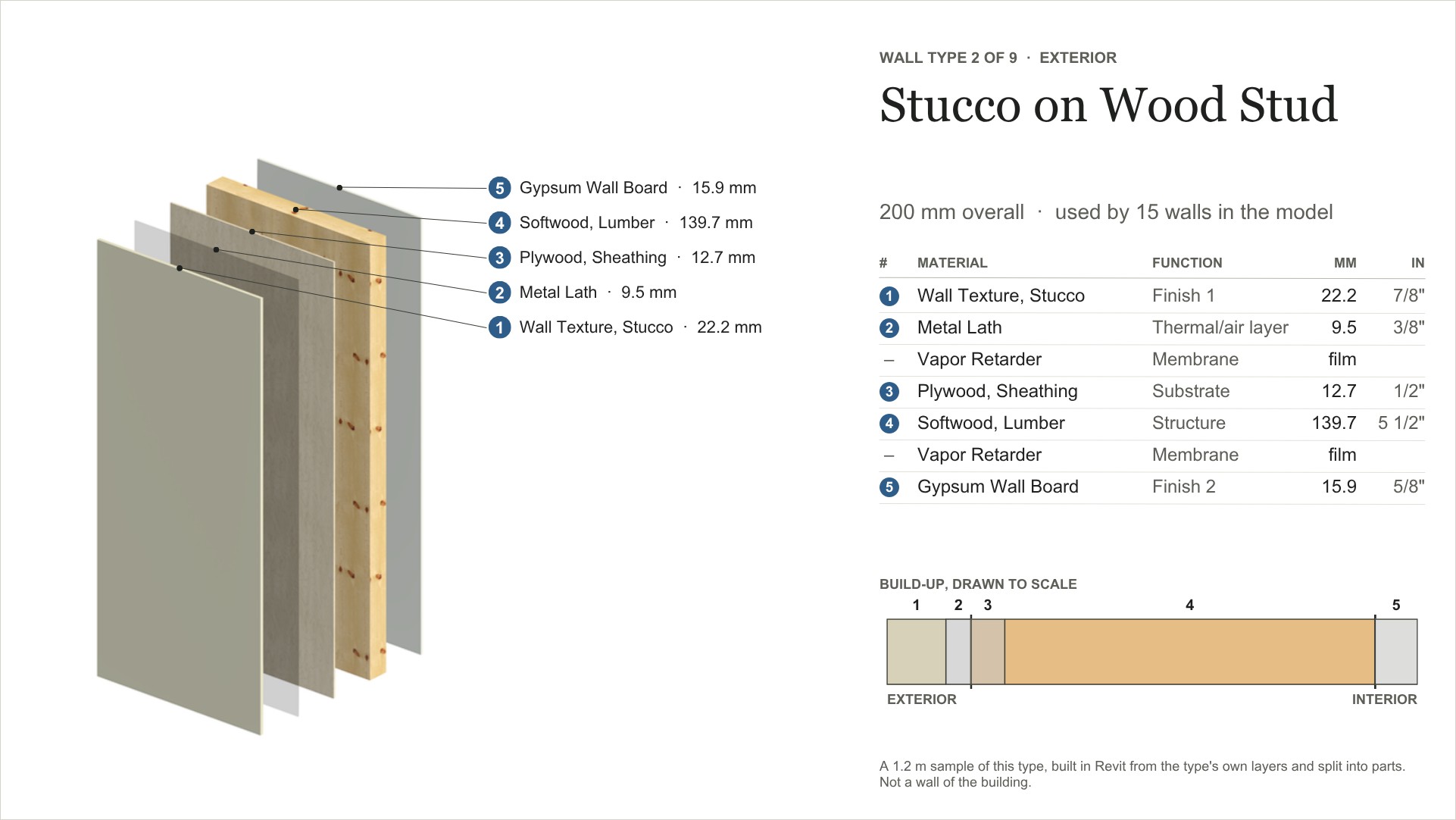
In Canva, a page per type: the layers numbered, a table of materials and thicknesses, and the build-up drawn to scale.
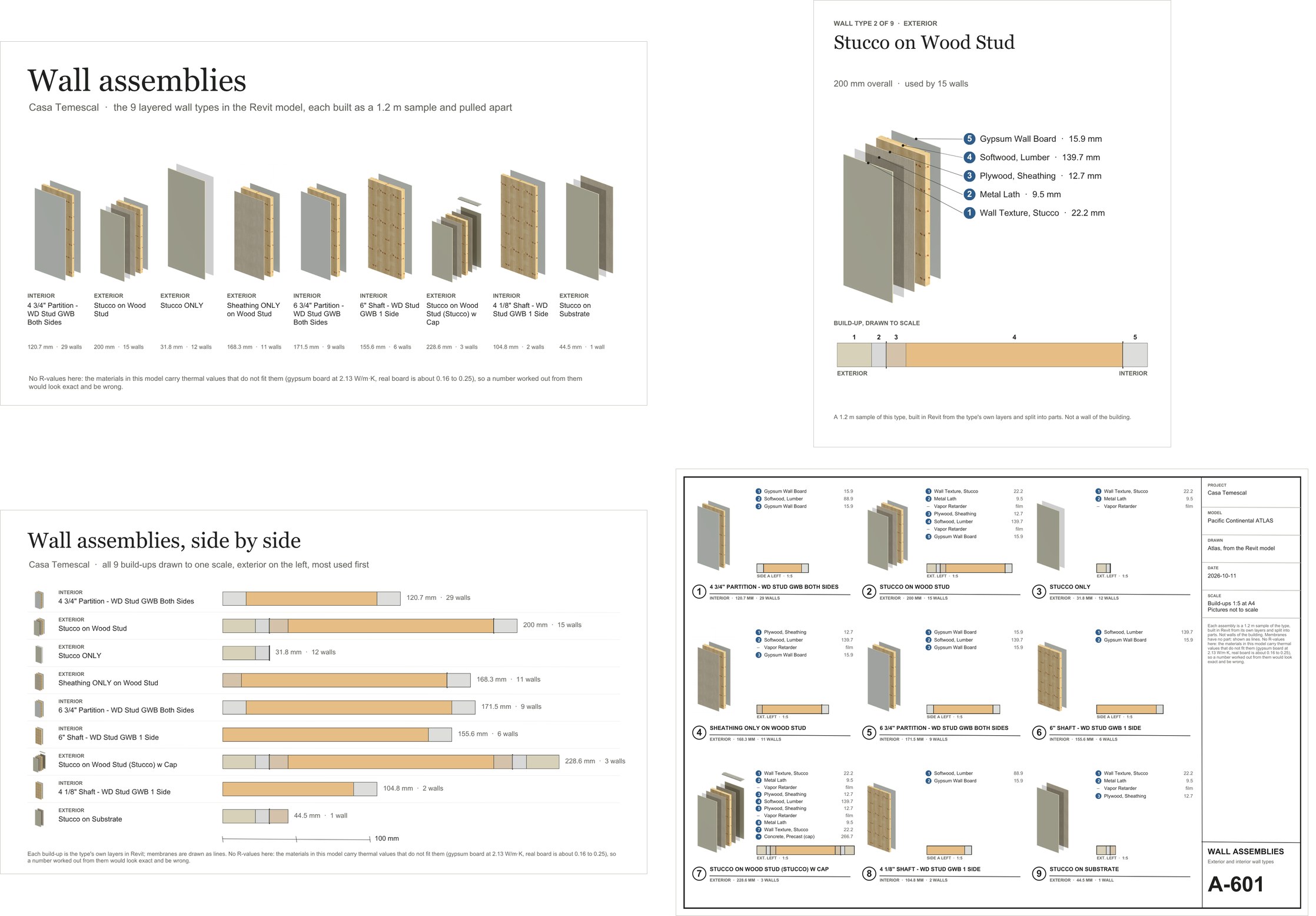
The same walls can go into Canva four ways.
5. Why samples
A wall in the building has windows, doors and corners cut into it, and those break the layers apart in the picture. A sample is a new wall of the same type standing on its own, so each page shows the type’s layers and nothing else.
The samples are not walls of the building, and the pages say so. Deleting them, with their parts and views, leaves the model as it was.
I hope this one helped, even a little. If it did, the skills and the handbook will help a lot more: the Revit jobs that come back every day, done with Claude, in the model that is already open. Only what I have run myself and found useful on real projects goes in.
David